On this page
In brief: Some Galaxy software versions expose Connectivity Labs through the Intelligent Wi-Fi version entry. Use the available information to compare locations and investigate a problem. Opening the menu does not strengthen the signal, repair a router or guarantee faster internet.
The useful result is not finding a hidden screen. It is answering a specific question: does the connection deteriorate only in one room, on one device or at certain times? A repeatable comparison is worth more than changing a channel because a graph looks busy.
1. Check availability without assuming universal support
Members of Samsung’s community reported the menu on One UI 6; another community solution describes the version-tap sequence. These are user observations, not a manufacturer guarantee covering every model, carrier and firmware.
- Connect to your own Wi-Fi network and open Settings → Connections → Wi-Fi.
- Open the three-dot menu and select Intelligent Wi-Fi, if present.
- Scroll to the Intelligent Wi-Fi version entry near the bottom.
- Tap that version entry repeatedly until an enabling message appears; seven taps is a reported example, not a universal rule.
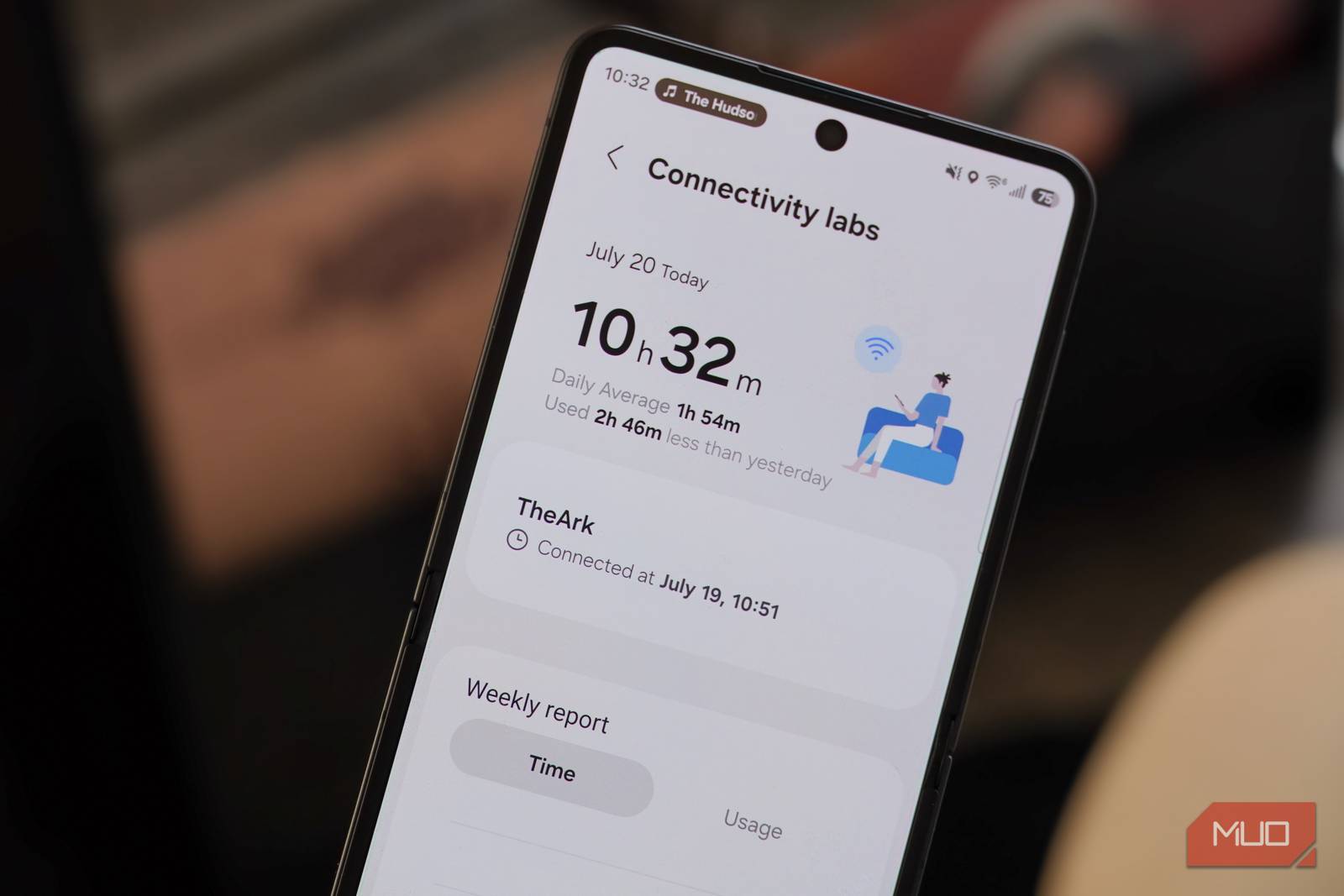
- Look for Connectivity Labs within the same settings area and open it.
If the entry or tools are absent, stop there. Do not use undocumented service codes, install a modified settings application or assume an update will add them. Standard network details and the router’s own diagnostics can still support the comparisons below.
2. Record a baseline beside the router
Write down the phone model, software version, network name, connected band and the symptom you are investigating. At a fixed reference position near the router, record the information your build actually exposes. Available tools may include Home Wi-Fi inspection, connection details or developer-oriented diagnostics; they need not match screenshots from another phone.
Keep private network names and device addresses out of publicly shared screenshots. Do not change experimental roaming or connectivity toggles during the first inspection: you need a baseline before you can judge a change.
3. Repeat the same check where the problem happens
Move to the desk, sofa or room where calls drop, pause in the same position and record the same values. Repeat at a time when the fault normally occurs. Note any switch to another access point or band; otherwise you may be comparing two different connections without realizing it.
Signal strength, negotiated link rate and internet throughput answer different questions. A strong signal does not prove the internet service is fast, and a displayed link rate is not a measured download rate. Avoid treating one RSSI threshold as a universal pass/fail limit for every application.
If the inspection tool plots a signal trace, use it as such. Do not assume it creates a calibrated floor-plan heat map or identifies the best router location automatically. Your written locations and repeat measurements supply the missing context.
4. Separate coverage trouble from internet or device trouble
Compare the same task near the router and in the problem location. Then compare another device, where available. If every device is slow even near the router, investigate the internet connection, router load or service itself before buying additional Wi-Fi equipment.
If only one Galaxy phone has trouble, check its software, connection history and normal network settings first. If only the distant room is unreliable, investigate placement, obstructions and the connection to any mesh node. These are diagnostic branches, not proof of a particular fault.
5. Make one reversible router change
Only alter a network you administer. Save its existing configuration and use the router’s documented application or management address; there is no universal address for every home. Change one parameter or one physical position, then repeat the original test.
Apple’s router guidance, written for networks used with Apple devices, recommends automatic channel selection. It is a useful counterexample to the claim that manually choosing the least crowded-looking channel is always better. Follow your router’s documentation and judge actual performance. Neighbor counts alone do not measure total interference, and automatic-channel behavior varies by product.
Do not disable Wi-Fi security, change the regulatory region or select unsupported channels to chase a graph. A channel change may disconnect household devices, so arrange a suitable time and verify that printers, smart-home devices and other users reconnect afterward.
6. Verify the result and keep a rollback note
Repeat the same application, position and approximate time-of-day comparison. Note whether the original problem improved, whether the improvement repeats, and whether another room or device became worse. Restore the previous setting when there is no useful improvement.
A simple log is enough: location, connected band/access point, observed symptom, change made and retest result. Do not factory-reset a router as the first response to one poor measurement. Before escalation, collect the router model, firmware, phone version and this log for support.
What this tool does not replace
Connectivity Labs is not a professional RF survey, an internet-service guarantee or automatic network repair. Do not enable public-hotspot auto-join or change privacy settings merely because an unrelated toggle is nearby. Read-only observation is the appropriate starting point.
This guide was reviewed on 14 October 2026. The menu path is grounded in the linked firsthand community reports, whose exact availability must still be checked on your phone. Router recommendations are identified separately, and the comparison procedure is editorial guidance. AYXWORKS is not claiming a measured improvement in a particular home.