On this page
Keeping an older processor healthy doesn’t always require a new cooler or a fresh build. A MakeUseOf contributor who has run a Ryzen 5 5600 since 2022 explains how five everyday gaming habits have prevented thermal throttling and kept performance steady.
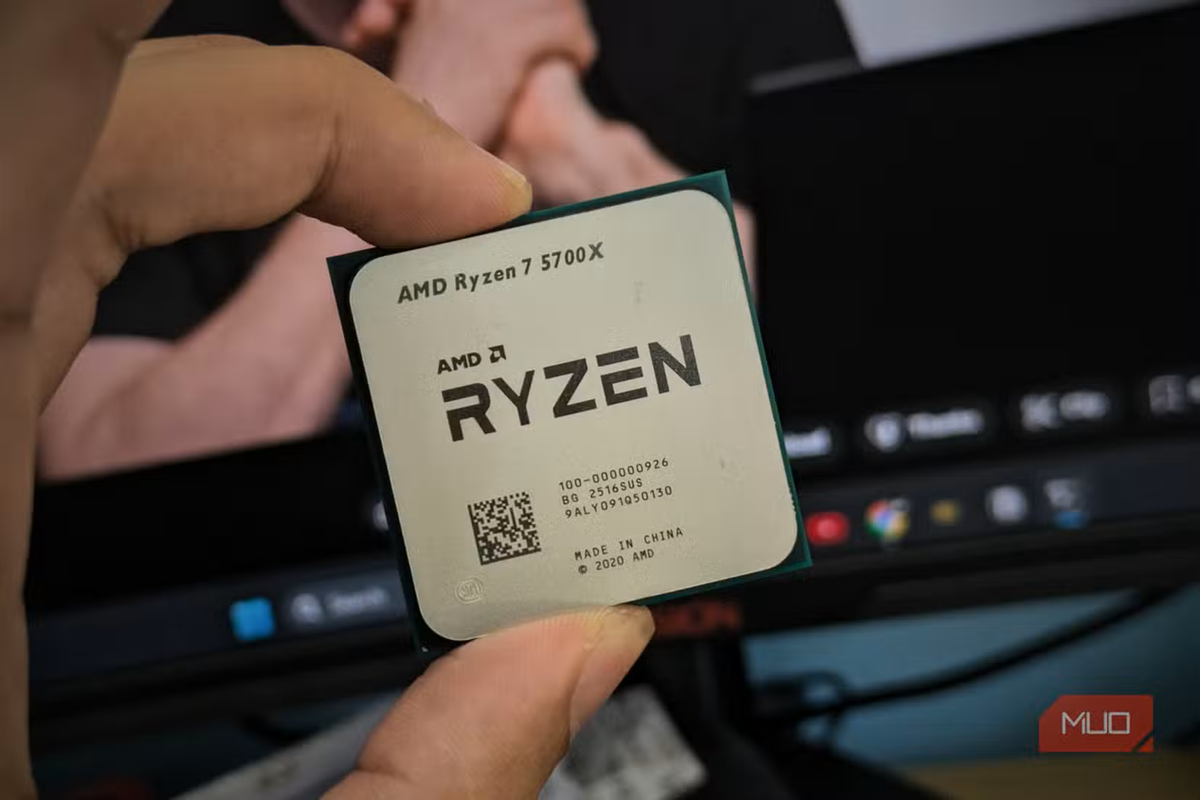
Thermal throttling can silently kill processors, and the author learned this after losing over a dozen CPUs. For anyone running older hardware like an AM4-platform Ryzen 5 5600 — or simply wanting to avoid premature upgrades — small changes to how games are configured can keep temperatures in check and extend a CPU’s usable life. Capping frame rates at the driver level, rather than relying on in-game limiters, reduces sustained load and improves frame pacing on non-VRR displays. These habits turn a potential hardware failure into a manageable maintenance routine, saving money and frustration.
Limit the Frame Rate
Running games at uncapped frame rates forces the CPU to prepare frames faster than the monitor can display, generating unnecessary heat. The author caps his frame rate to the 1 % low value or to a modest average (e.g., 55 fps when the game hovers around 54‑60 fps) using the Nvidia App or AMD Adrenalin driver‑level limiter, which works consistently across titles unlike many in‑game limiters that only affect cutscenes or specific modes (MakeUseOf).
Driver‑level caps also improve frame pacing on non‑VRR displays, delivering smoother motion without extra GPU work. Tools such as RivaTuner Statistics Server (RTSS) can achieve the same result for users who prefer a standalone utility.
- Cap at the 1 % low or a safe average frame rate.
- Prefer driver‑level limiters (Nvidia App, AMD Adrenalin, RTSS).
- Benefits: lower CPU usage, better frame pacing, reduced thermals.
Use Upscalers Wisely
Modern upscalers such as DLSS and FSR render the game at a lower internal resolution and reconstruct a sharp image, cutting the workload on both GPU and CPU. In open‑world titles like Forza Horizon 6 the author measured a CPU‑usage drop of over 5 % and a 1‑2 °C temperature reduction when switching from native 1440p (DLAA) to DLSS Quality (MakeUseOf).
At 1440p the visual difference between DLAA and DLSS Quality is barely perceptible, making the quality preset a practical default for most single‑player experiences.
Note: Upscaling quality varies by title; test each game’s presets to find the sweet spot between image fidelity and thermal relief.
Disable Unnecessary Overlays
Overlay layers from the Nvidia App, Steam, or other utilities consume a small but constant slice of CPU cycles. The writer disables the Nvidia overlay after every driver update and turns off the Steam overlay for single‑player games such as Phantom Blade Zero, Dragon’s Dogma 2, and Cyberpunk 2077, while keeping it active for multiplayer titles where friend invites matter (MakeUseOf).
Disabling overlays globally is simple in Steam (Settings → In‑Game → Disable Steam Overlay) and can be toggled per game for flexibility.
Tip: Keep overlays only for games that need real‑time chat or invite handling; the CPU savings add up over long sessions.
Ensure Proper Ventilation
Airflow is the foundation of thermal stability. The author runs a case with up to six fans, maintains at least three inches of clearance behind the chassis, and even removes the front dust mesh to let cooler air enter more freely (MakeUseOf).
He cautions against over‑reliance on air conditioning, which can raise humidity and promote corrosion over time. A well‑ventilated room and balanced intake/exhaust fans are usually sufficient.
Moderate CPU Maintenance
Regular dusting of the case, motherboard connectors, cooler fan, and intake fans preserves airflow. However, the writer warns against the common myth that thermal paste must be reapplied yearly; most pastes last seven years or more unless the cooler is swapped or a liquid‑cooling loop is installed (MakeUseOf).
His routine: detach only the fan from the heatsink, blow it clean with compressed air, and verify temperatures in BIOS before and after cleaning to catch any assembly issues early.
Why This Matters
Thermal throttling not only cuts frame rates during crucial moments but also accelerates silicon degradation, shortening the useful life of a processor that many gamers cannot afford to replace in the current market. By adopting low‑effort habits — frame‑rate caps, upscaling, overlay management, airflow, and sensible maintenance — users can extract years of reliable performance from existing AM4 hardware without additional spending.
These practices also reduce overall system power draw, which translates into lower electricity costs and a quieter rig, benefits that compound over daily gaming sessions.
What to Do Next
Start by enabling a driver‑level frame‑rate cap in the Nvidia App or AMD Adrenalin for your most played titles. Next, switch those games to DLSS Quality or FSR Quality and observe CPU usage in a monitoring overlay. Then audit your overlay settings, clean your case fans, and verify that your case has at least three inches of rear clearance. Finally, schedule a quarterly dust‑out and resist the urge to re‑paste unless you change coolers.
Want more practical guides? Explore more Ayxworks insights and save this article for later.
FAQ
Does capping frame rate hurt competitive gaming performance?
For competitive shooters a higher, uncapped frame rate can reduce input latency. The habit is best applied to single‑player or less latency‑sensitive titles where thermal headroom matters more.
Which upscaler preset offers the best balance for a Ryzen 5 5600?
DLSS Quality (or FSR Quality) at 1440p typically yields a 5 % CPU‑usage drop with negligible visual loss, as reported by the MakeUseOf author.
Is it safe to disable the Steam overlay globally?
Yes, you can disable it globally and re‑enable per game. Keep it on only for multiplayer games that rely on invites or chat.
How often should I clean my case fans?
A quarterly cleaning with compressed air is sufficient for most environments; increase frequency if you have pets or live in a dusty area.
When should I actually replace thermal paste?
Only when you swap the cooler, move to liquid cooling, or notice a sustained temperature rise after years of stable operation.