On this page
It’s frustrating when an external hard drive suddenly stops showing up in File Explorer or the Finder. Whether you’re trying to back up precious photos, move large project files, or simply access data on the go, a silent drive can feel like a digital dead end. The good news is that most issues are solvable with a few straightforward hardware checks and software tools, many of which are already built into Windows 11 and macOS. Below we break down the most reliable steps, drawing on the troubleshooting guidance originally published by Engadget, so you can recover access without panic or unnecessary expense.
Why This Matters
External storage has become a cornerstone of modern workflows, enabling users to shift media libraries, backup critical files, and maintain redundancy through strategies like the 3-2-1 rule. When a drive fails to mount, productivity stalls and the risk of data loss rises. Understanding the underlying causes—whether hardware-related, driver issues, or filesystem corruption—helps users act quickly, often without costly repairs. The Engadget guide outlines a systematic approach that addresses both the most common and the less obvious culprits, empowering anyone from casual users to power users to regain access safely.
Quick hardware checks
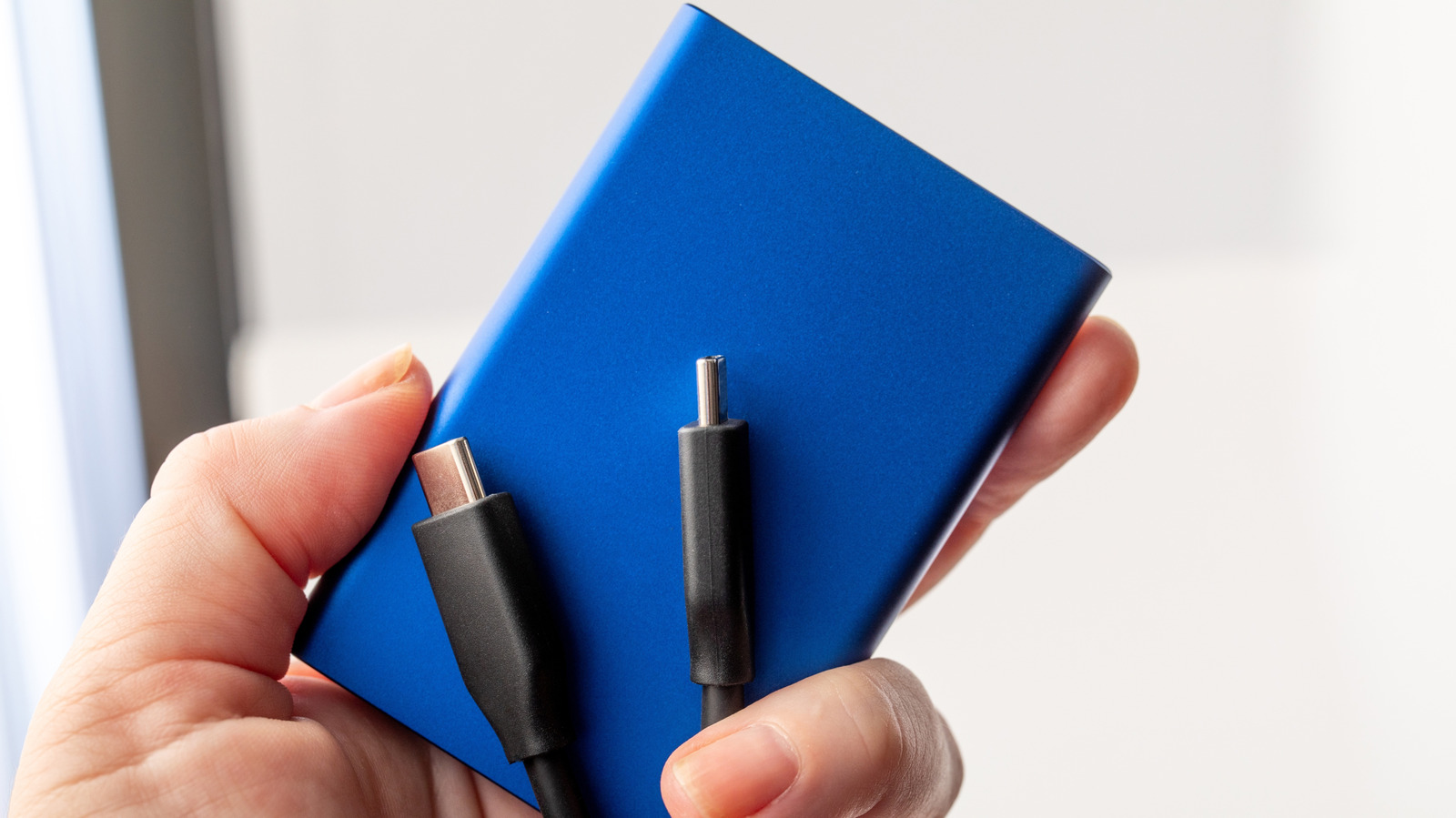
The first line of defense is to rule out physical connections. Try swapping the USB or Thunderbolt cable with a known‑good one, and test the drive in a different port on the same computer. Some external drives require dedicated power, and low‑power USB ports may not supply enough juice. If you have a second PC or laptop, plug the drive in there; this can confirm whether the issue is specific to the original system. Even if the drive appears visible in Device Manager or the Finder, a faulty cable can prevent data transfer. #1
Software fixes for Windows
Assuming the hardware is intact, Windows 11 offers built‑in utilities to revive a non‑responding drive. Open Device Manager, expand Disk drives, and locate the drive entry. Right‑click it, choose Properties > Volumes > Populate, then open Disk Management to see if a drive letter can be assigned. If the NTFS formatting is missing, reformatting may be required, but this erases data, so treat it as a last resort. Before reformatting, run CHKDSK: launch Terminal and execute chkdsk [drive letter] /r. This command attempts to repair errors and recover bad sectors. #2
Key points
- Swap cables and ports before assuming drive failure.
- Use Windows Disk Management to assign a drive letter.
- Run CHKDSK with the
/rflag to repair and recover. - Reformat only after exhausting non‑destructive options.
Software fixes for macOS
macOS users typically rely on Disk Utility as their catch‑all tool. Open Disk Utility, go to View > Show All Devices, locate the external drive, and click Mount. If mounting fails, select First Aid to repair filesystem errors without data loss. Should First Aid be insufficient, Disk Utility offers a reformat option, but this will wipe the drive. As with Windows, back up any critical data beforehand. #3
Note: Apple usually bundles driver updates with OS upgrades, so checking Software Update is often enough to resolve driver‑related mounting problems.
Updating drivers and system tools
Out‑of‑date drivers can prevent a drive from being recognized. On macOS, navigate to Apple menu > System Settings > General > Software Update and install any available updates. Windows 11 users should check Settings > Windows Update for driver patches. If the issue persists, right‑click the drive in Device Manager, open the Driver tab, and try updating or uninstalling the driver. Uninstalling without the deletion option often triggers an automatic reinstall on restart, which can repair the connection. #4
Tip: After updating drivers, restart your PC to allow Windows to reinstall any missing components automatically.
When all else fails: professional help
If the drive still refuses to mount after hardware swaps, CHKDSK/First Aid attempts, and driver updates, the problem may be deeper—perhaps a failing read/write head or NAND cell degradation in an SSD. In such cases, contacting the drive manufacturer or a reputable repair service is advisable, especially if the drive contains irreplaceable data. Some users also turn to data recovery specialists who can extract information from physically compromised media. #5
What to Do Next
After you’ve followed the steps above, the next move is to establish a robust backup routine. Implement the 3‑2‑1 rule: keep three copies of important files, on two different media types, with one copy stored off‑site. Consider using cloud storage for one copy and an external SSD for another, ensuring redundancy. Regularly schedule backups, and test restoration procedures so you’re prepared if another drive failure occurs. This proactive habit reduces downtime and safeguards against future data loss.
Want more practical guides? Explore more Ayxworks insights and save this article for later.
FAQ
Do I need to reformat the drive if it isn’t showing up?
Not necessarily. Try hardware swaps, CHKDSK (Windows) or First Aid (macOS), and driver updates first. Reformatting is a last resort because it erases all data.
Can a faulty USB port cause the drive to be invisible?
Yes. Some ports may not supply enough power, especially for larger SSDs. Plug the drive into a different port or a second computer to isolate the issue.
What if the drive appears in Device Manager but has no drive letter?
You can assign a drive letter via Disk Management. Right‑click the drive entry, choose Properties > Volumes > Populate, then use Disk Management to set a letter.
Is it safe to update drivers through Windows Update?
Yes, Windows Update includes critical driver patches. After updating, restart your PC to allow any automatic reinstalls.
When should I seek professional data recovery?
If hardware swaps, software utilities, and driver updates fail, the drive may have physical damage. Professional services can attempt recovery, but costs vary.
How often should I back up my external drives?
Follow the 3‑2‑1 rule and back up at least weekly for active projects, and monthly for archival data. Test restores regularly.