On this page
In brief: Check workload and ventilation before changing fan behavior. If your exact laptop supports a manufacturer-provided Quiet profile, try it and compare the result under the same workload. It may reduce performance or increase surface temperature. Never disable a fan or a thermal safeguard just to make the machine silent.
A fan that gets louder during a video export is doing a different job from one that rattles while the computer is idle. Treating both as a BIOS setting problem is how a useful adjustment becomes a distraction from a real fault. This guide covers reversible settings, not hardware modification or a universal fan curve.
1. Establish what is making the fan work
Place the laptop on a firm surface with its vents unobstructed. Save work, let startup activity settle, and inspect CPU and GPU load in your operating system’s task monitor. Updates, browser tabs, synchronization and other background work may explain why an apparently idle computer is still generating heat.
Compare plugged-in and battery operation, noting the power mode and applications in use. Do not stop security services or system updates merely to improve a noise comparison. An unexpectedly busy process is something to investigate, not a reason to restrict cooling.
If you hear scraping, repeated mechanical clicking or a sudden change from the usual sound, use the manufacturer’s diagnostics or arrange service. A low-noise profile is not a repair for a damaged fan.
2. Find the setting supported by your exact model
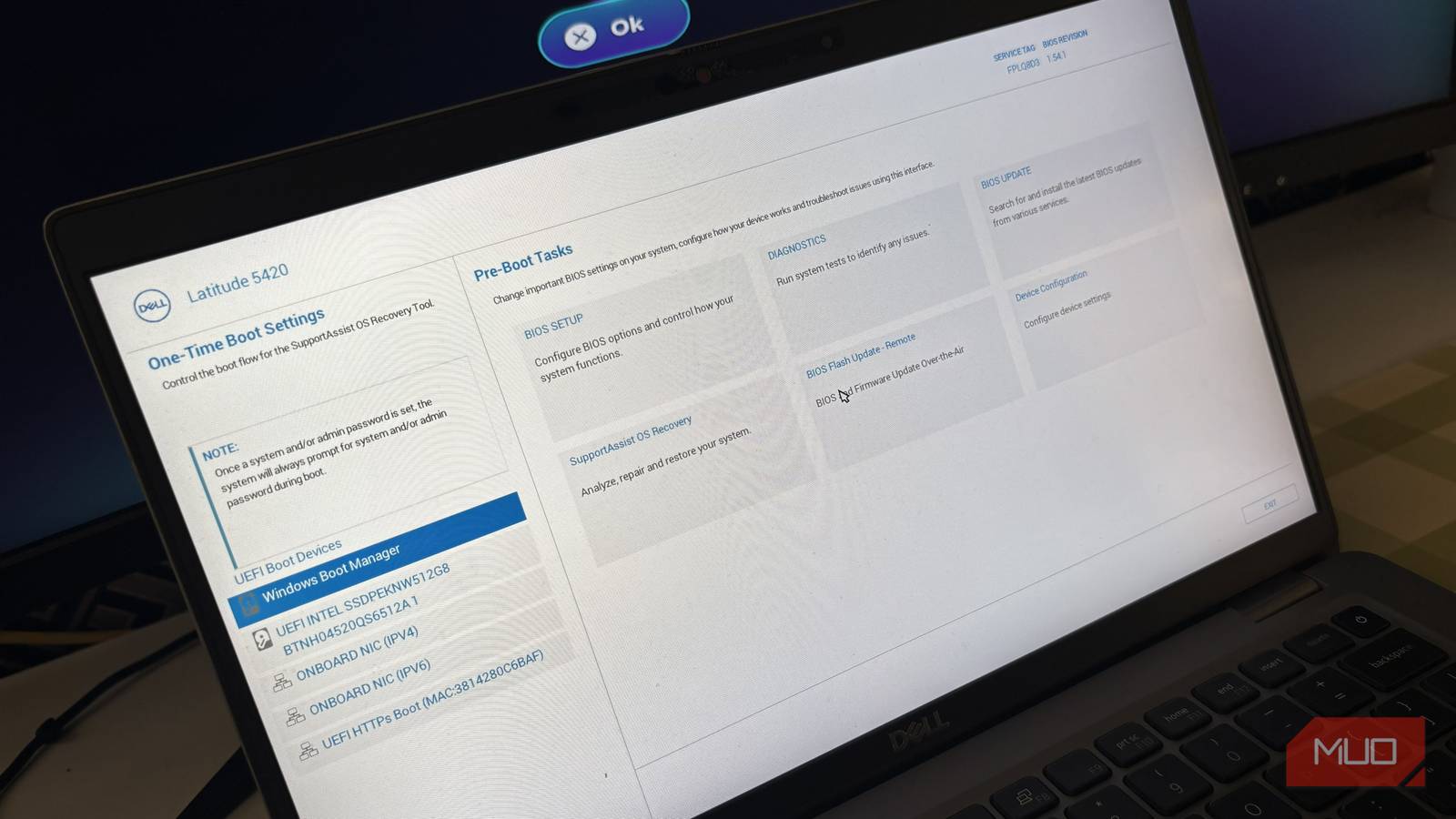
Look up the laptop’s product number and its manufacturer’s support documentation. Some machines expose thermal modes in BIOS/UEFI; others provide them through an official utility, and some offer no user control. A screenshot from another laptop is not compatibility evidence.
For example, Dell Optimizer’s documentation describes Quiet as lowering fan and processor speeds, potentially reducing performance and increasing surface temperature. That explains the trade-off; it does not establish that this utility or mode works on another brand or every Dell model.
Prefer the supported preset over an arbitrary temperature-to-RPM curve. Do not install several utilities that compete to control the same hardware. Software written for another embedded controller can be incompatible even when the laptops look similar.
3. Change one supported profile, not unrelated firmware options
- Record the current profile and where you found it. Save your work.
- Open the official utility or enter BIOS/UEFI using the procedure in the exact model’s manual.
- Read the description of the available thermal modes. Select Quiet only if it is a documented choice for this device.
- Save only that change and exit. If no such option exists, leave the firmware unchanged.
- After starting the operating system, confirm the intended mode is active.
There is no universal setup key or thermal menu. A boot-device menu is not necessarily the firmware settings screen. Do not alter Secure Boot, storage-controller mode, voltage, processor limits or protection settings while looking for a fan preset.
This procedure does not require flashing new firmware. If the manufacturer recommends a firmware update for a diagnosed problem, handle that separately under its instructions, with appropriate power and recovery preparations.
4. Compare noise and useful performance together
Repeat a task that represents your use: a normal video call, document work or a familiar compilation. Keep the power source, surface and applications comparable. Note the sound, responsiveness, completion time and any warnings. A phone recording from a fixed position can help you compare impressions, but it is not a calibrated sound-level measurement.
Use the manufacturer’s supported monitoring tools where available. There is no single safe CPU temperature that applies to every laptop, processor, sensor and workload. Follow the device’s limits and stop the trial if there are thermal warnings, shutdowns or abnormal behavior. If the quiet setting harms your work, return to the previous profile.
5. Roll back narrowly if the result is worse
Restore the original thermal mode in the same utility or firmware menu, then repeat the same task. Do not load all BIOS defaults simply to undo one profile: that can change unrelated boot, storage or security settings.
If the setting does not persist, check the manufacturer’s documentation for interaction between its utility and the operating-system power mode. Note whether the change happens after sleep, a restart or connecting the charger. That is more useful for support than repeatedly switching every power option.
When there is no Quiet mode
Keep ventilation clear, reduce unnecessary application load and use a supported operating-system power mode appropriate to light work. Clean or service the laptop only as its maintenance instructions permit. On a work computer, involve IT before installing control utilities or opening the case.
Do not force a fan off, write undocumented embedded-controller values or assume a third-party fan utility supports the machine. If the laptop requires significant cooling to perform your workload, some fan noise may be the honest cost of that performance.
What a successful adjustment looks like
Success is quieter operation with acceptable task performance and normal, stable behavior—not merely a lower fan speed. Keep the original setting and your test notes. Recheck after major software changes instead of assuming a preset will always behave identically.
No lifespan improvement, dust reduction or performance-neutral result is promised here. AYXWORKS has not performed the laptop benchmark previously implied by this article; the advice is based on documentation and a proposed comparison method.
Sources and scope
See Dell’s performance and thermal troubleshooting guidance and the linked Optimizer manual, checked 14 October 2026. Dell is an example of documented profile behavior, not a universal instruction for other manufacturers. Hardware faults require model-specific diagnosis.