On this page
If you’ve ever left a laptop unlocked at a café or coworking space, you know the uneasy feeling of wondering who might glance at your screen. Windows has a quiet, built‑in solution called Dynamic Lock that watches the Bluetooth connection to your phone and locks the PC automatically when you step away.
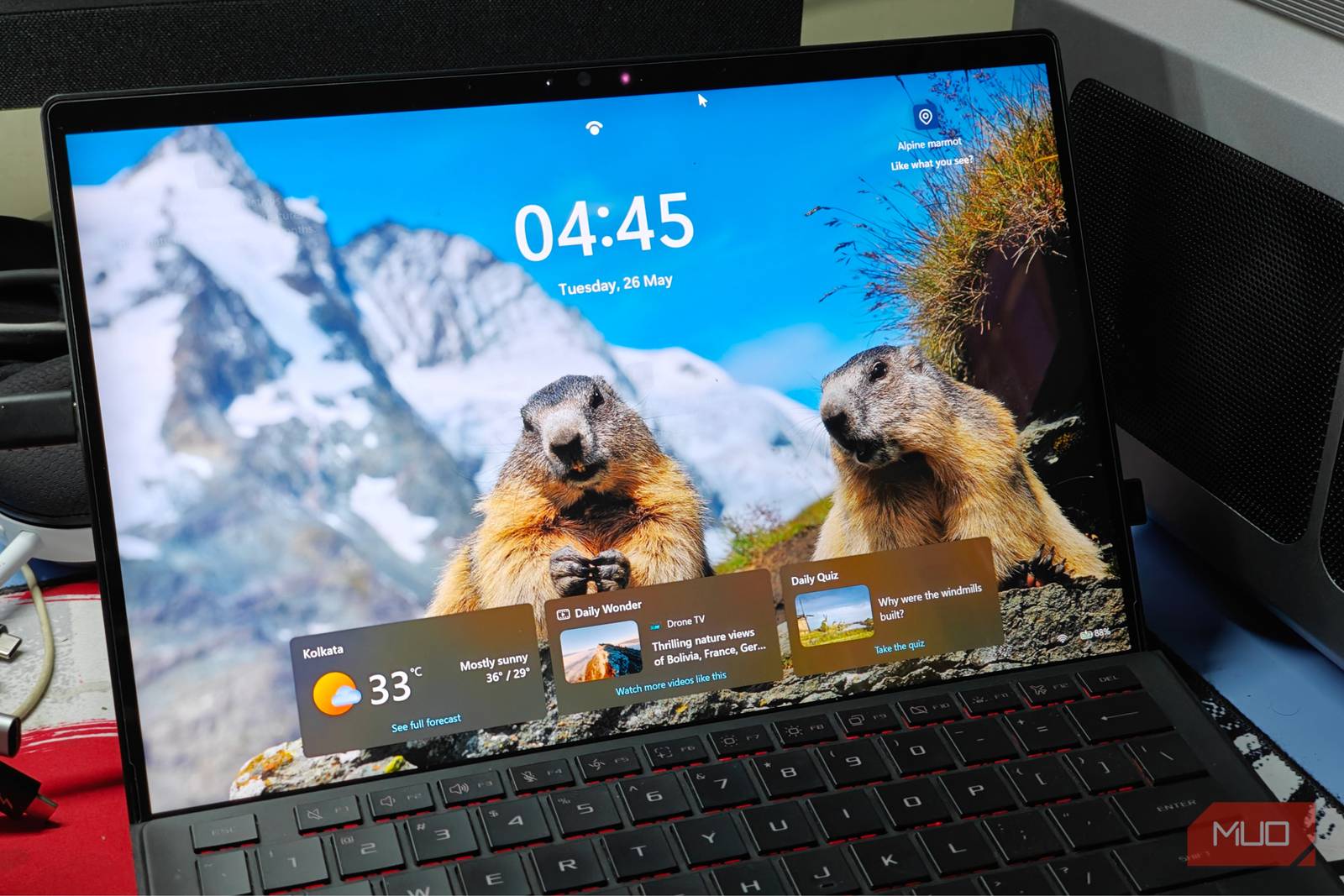
If you regularly work in cafés, coworking spaces, or shared offices, the moment you step away from your laptop you expose whatever is on screen to anyone nearby. Dynamic Lock removes that risk by using the phone already in your pocket to trigger an automatic lock within seconds, so you no longer have to remember a keyboard shortcut or worry about forgetting. For anyone who carries a smartphone and a Windows PC, this built‑in feature turns a habitual security gap into a hands‑free safeguard.
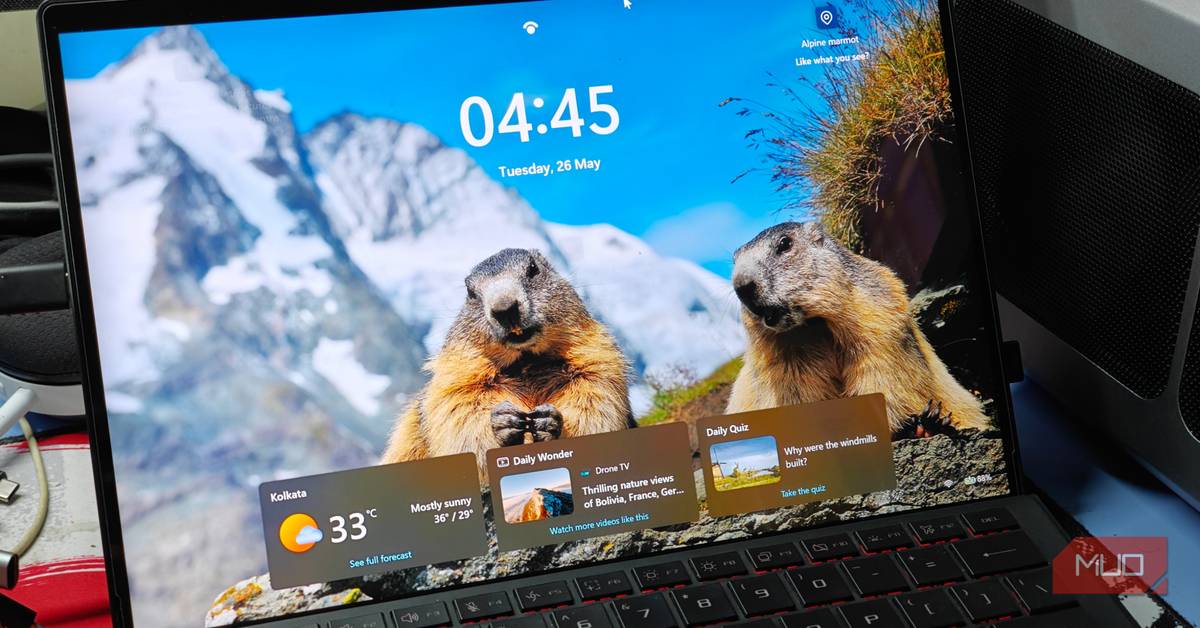
How Dynamic Lock Works
Dynamic Lock debuted in the Windows 10 Creators Update (2017) and remains essentially unchanged in Windows 11. Once enabled, it monitors the Bluetooth signal strength between your PC and a paired phone. When the signal drops below a threshold — typically because you’ve moved out of range — Windows waits roughly 30 seconds, then locks the session. The feature requires two conditions: a sufficiently weak Bluetooth signal and an idle PC. If you move the mouse or press a key before the timer expires, the lock is cancelled.
Setting Up Dynamic Lock
First, make sure Bluetooth is turned on in Settings → Bluetooth & devices (Windows 11) or Settings → Devices → Bluetooth & other devices (Windows 10). On your Android or iOS phone, open Bluetooth settings, find your PC, and pair the devices. After pairing, open Settings → Accounts → Sign‑in options, expand the Dynamic lock section, and check “Allow Windows to automatically lock your device when you’re away.” The feature is now active.
- Pair phone via Bluetooth in Windows Settings.
- Enable Dynamic Lock under Accounts → Sign‑in options.
- Lock triggers after ~30 seconds of low signal and idle state.
Why This Matters
For anyone who works in public spaces — libraries, coffee shops, shared offices — Dynamic Lock adds a safety net for those moments you forget to press Win + L. It doesn’t replace manual locking, but it reduces the window of exposure from minutes to seconds. The author of the source article notes that after adopting Dynamic Lock, he “can’t go back to using my laptop without it” because it catches the frequent, harmless lapses that happen during a coffee run or a phone call.
Limitations and Gotchas
The 30‑second delay means a quick‑thinking bystander could still interact with the PC before it locks. The feature also won’t unlock automatically when you return; you must sign in again with password, PIN, or Windows Hello. On desktops lacking built‑in Bluetooth, a USB adapter can work, but the source author experienced more false locks with an adapter, likely due to signal instability. Power‑saving modes on either device may also cause occasional premature locks.
Dynamic Lock is an added security layer, not a replacement for Win + L.
Improving the Experience with Windows Hello
If your device supports Windows Hello (facial recognition, fingerprint, or PIN), enable it in the same Sign‑in options page. Hello makes the post‑lock sign‑in almost instantaneous, mitigating the inconvenience of re‑entering a long password on machines without biometric hardware.
What to Do Next
1. Pair your phone to your PC via Bluetooth if you haven’t already. 2. Turn on Dynamic Lock in Sign‑in options. 3. Test the behavior by walking a few meters away and timing the lock. 4. Enable Windows Hello for faster unlocking. 5. Keep Win + L as your primary lock habit for instant security.
Test the feature in a safe environment before relying on it in public spaces.
Want more practical guides? Explore more Ayxworks insights and save this article for later.
My Windows PC locks itself when I walk away, and I didn’t install a thing to make it happen Close Close By Manuviraj Godara Published Oct 11, 2026, 4:00 PM EDT Manuviraj is a tech enthusiast who covers Windows, macOS, and retrocomputing.
With Dynamic Lock enabled, I no longer have to worry about anyone peeking at my screen when I forget to lock my laptop while stepping out of a café or coworking space.
Dynamic Lock kicks in as soon as you step away By soon I mean 30 seconds Dynamic Lock is a feature that was first introduced in the Windows 10 Creators Update in 2017.
When enabled, Dynamic Lock monitors the Bluetooth signal strength between your PC and your phone, and locks your PC as soon as the signal strength falls below a certain threshold.
To begin using Dynamic Lock, you’ll need to pair your Android or iOS device to your Windows device.
Once you’ve paired your smartphone to your Windows PC using Bluetooth, you can begin using Dynamic Lock.
FAQ
Does Dynamic Lock work with any phone?
Yes, it works with Android and iOS devices that support Bluetooth pairing.
How long does it take to lock after I walk away?
Approximately 30 seconds once the Bluetooth signal drops below the threshold.
Can I adjust the lock timeout?
Windows does not expose a user‑adjustable timeout for Dynamic Lock; it is fixed at about 30 seconds.
Will Dynamic Lock unlock my PC automatically when I return?
No, you must sign in again with your password, PIN, or Windows Hello.
What if my desktop lacks built‑in Bluetooth?
A USB Bluetooth adapter can be used, but the author experienced more false locks with an adapter.