On this page
Googlebook OS brings a built‑in Linux environment that lets you run Debian‑based applications directly from a lightweight laptop. This guide walks you through enabling the Terminal, installing apps with apt, and launching both command‑line and graphical programs.
Understanding Googlebook OS Linux Support
Googlebook OS includes a Linux virtual machine that runs the Debian distribution, isolated from the main system but with network passthrough and optional folder sharing. The environment is headless, meaning it lacks a dedicated graphics adapter, though GUI applications can still be launched with limitations. This setup gives users access to a mature package ecosystem while keeping the host OS secure (How-To Geek).
Why This Matters
For developers, hobbyists, and anyone interested in agentic AI workflows, having a ready‑to‑use Linux layer on a Googlebook removes the need for dual‑booting or separate hardware. It lowers the barrier to trying command‑line tools, scripting, and even lightweight GUI programs, making the device more versatile for productivity and learning.
Setting Up the Terminal
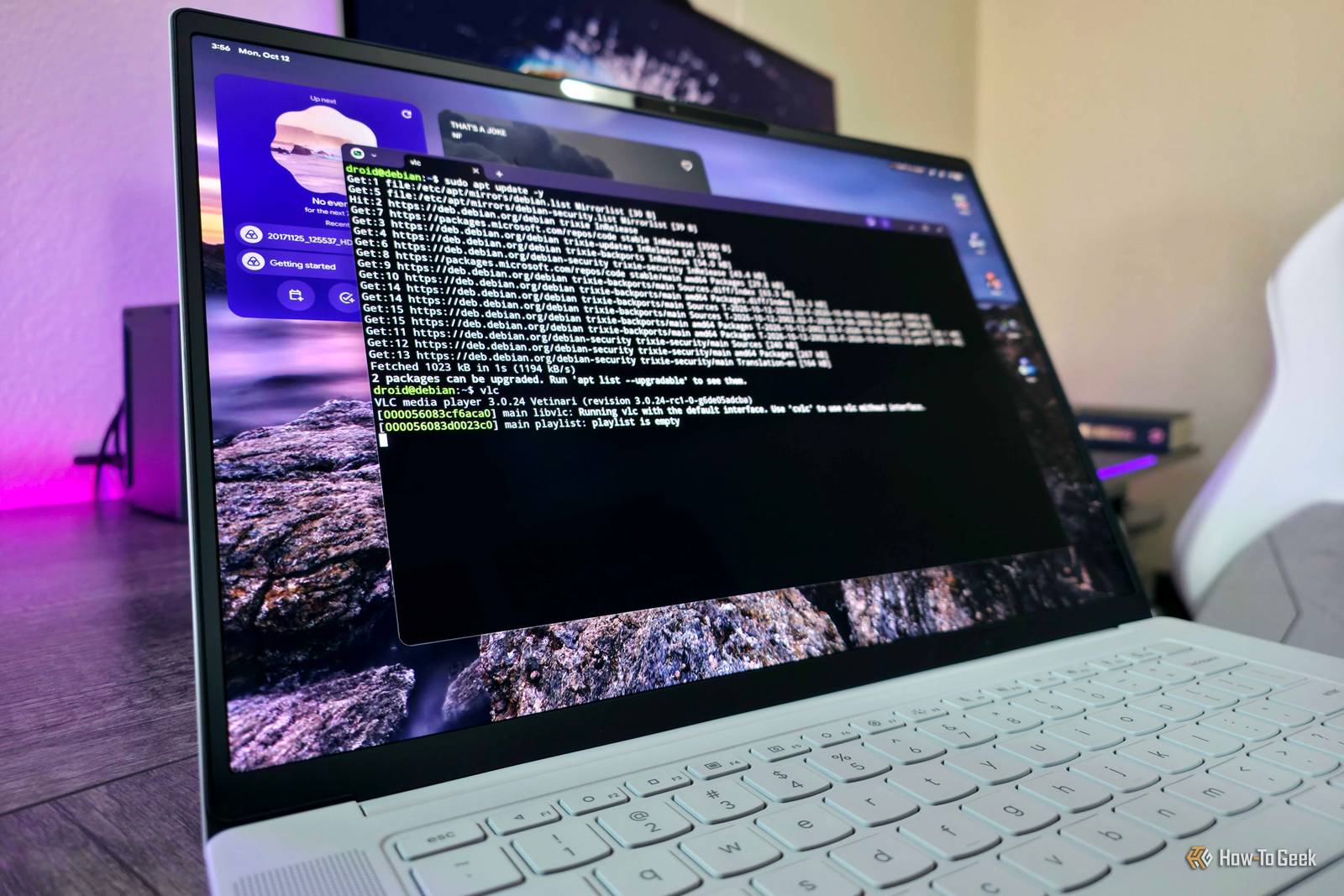
First, open the Terminal app from the app drawer. You will be prompted to download additional data; click Install and wait until the droid@debian:⁓$ appears, indicating the VM is ready. At this point the Linux environment is initialized and you can begin installing software.
Tip: If the install does not appear, restart the Terminal app or check for system updates in Googlebook OS settings.
Installing Apps with APT
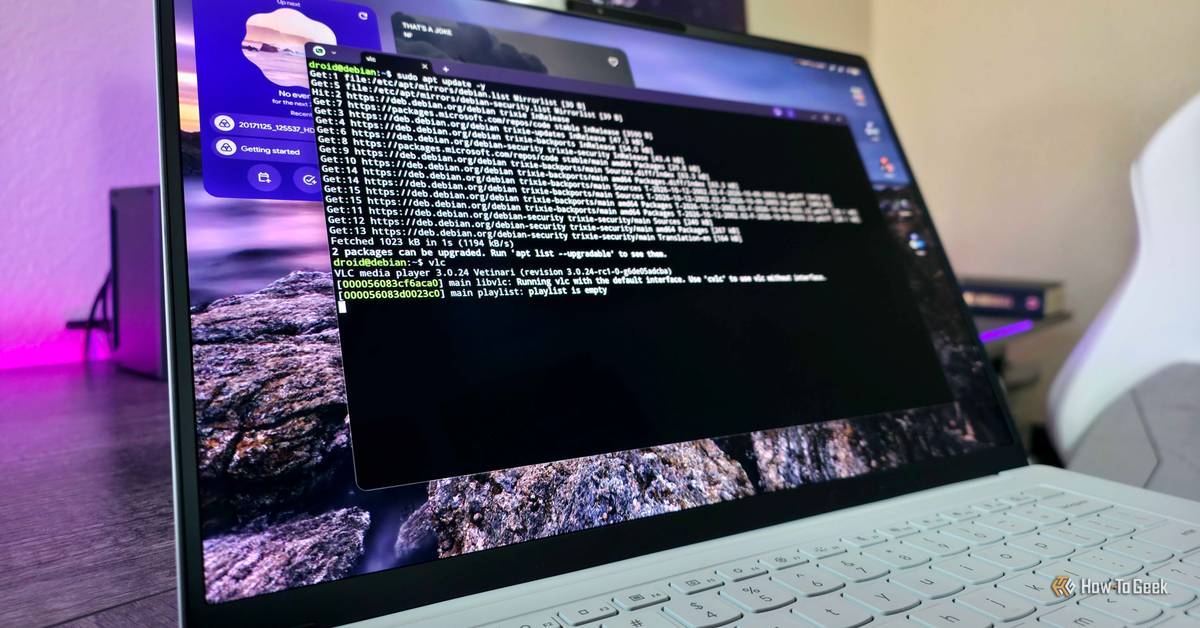
With the Terminal running, start by updating the package list: sudo apt update. This ensures you have the latest information on available software. Then install any Debian package using sudo apt install package-name, replacing package-name with the exact name (e.g., vlc for VLC Media Player). The installer will show a summary of changes and request confirmation; type y to proceed or n to cancel. After installation, run sudo apt upgrade -y to keep all packages current.
Note: The -y flag automatically answers yes to prompts, useful for scripting or batch updates.
Alternative Installation Methods
If you do not know the exact package name, search the local repository with apt-cache search "keyword". For software not in the default repos, you may need to add new sources by editing /etc/apt/sources.list (use sudo nano to edit). Alternatively, download a .deb file from the vendor, move it into the Linux VM folder accessible via Files, rename it for convenience, and install with sudo apt install ./file-name.deb. Some applications, like those requiring secure signatures, may also need gnupg2 installed via sudo apt install gnupg2.
Key points: Use apt-cache search to find packages; manually edit /etc/apt/sources.list for custom repos; install .deb files by placing them in the Linux VM folder.
Running GUI and CLI Apps
Command‑line tools launch instantly by typing their name and pressing Enter. Graphical programs require an extra step: after launching, click the GUI button next to the three‑dot ellipsis menu in the Terminal’s top‑right corner. GUI support is currently limited and may be inefficient, but Google has announced plans to expand it, including integrating Linux apps into the Googlebook app drawer.
Tip: For frequent GUI use, create a small alias or script that launches the app and clicks the GUI button via automation tools.
What to Do Next
Experiment with a variety of Debian packages to see which tools improve your workflow. Keep the Linux VM updated regularly with sudo apt upgrade -y. Explore advanced features such as shared folders for seamless file access, and watch for upcoming Googlebook OS updates that promise GPU acceleration, USB passthrough, and better GUI integration.
Want more practical guides? Explore more Ayxworks insights and save this article for later.
Learn to install and use Linux apps on Googlebook OS Close Close By Zachary Boddy Published Oct 18, 2026, 5:00 PM EDT Zachary Boddy is a seasoned journalist with over six years of experience covering technology and video games, and is now contributing to How-To Geek.
FAQ
Do I need to enable developer mode to use the Terminal?
No. The Terminal app is available in the standard Googlebook OS interface and does not require developer mode or any special flags.
Can I run Windows applications inside the Linux VM?
Not directly. The VM provides a Debian Linux environment; Windows software would need compatibility layers like Wine, which are not covered in the base setup.
Is there a limit to how much storage the Linux VM can use?
The VM uses space from your Googlebook’s internal storage. You can allocate more space via the Advanced settings in Terminal, but the total is bounded by the device’s available capacity.
How do I give the Linux VM access to my local folders?
Open Terminal Settings, navigate to the Shared folders page, and add the folders you want (e.g., Music, Documents). This makes those directories visible inside the VM’s file system.
Will GUI apps work as smoothly as on a regular Linux laptop?
Currently GUI support is basic and may suffer from performance limitations. Google has announced future improvements, but for now expect occasional lag or missing features.
External Sources and Further Reading
- How-To Geek – Learn to install and use Linux apps on Googlebook OS
- How-To Geek – Linux terminal commands don’t have to be complicated